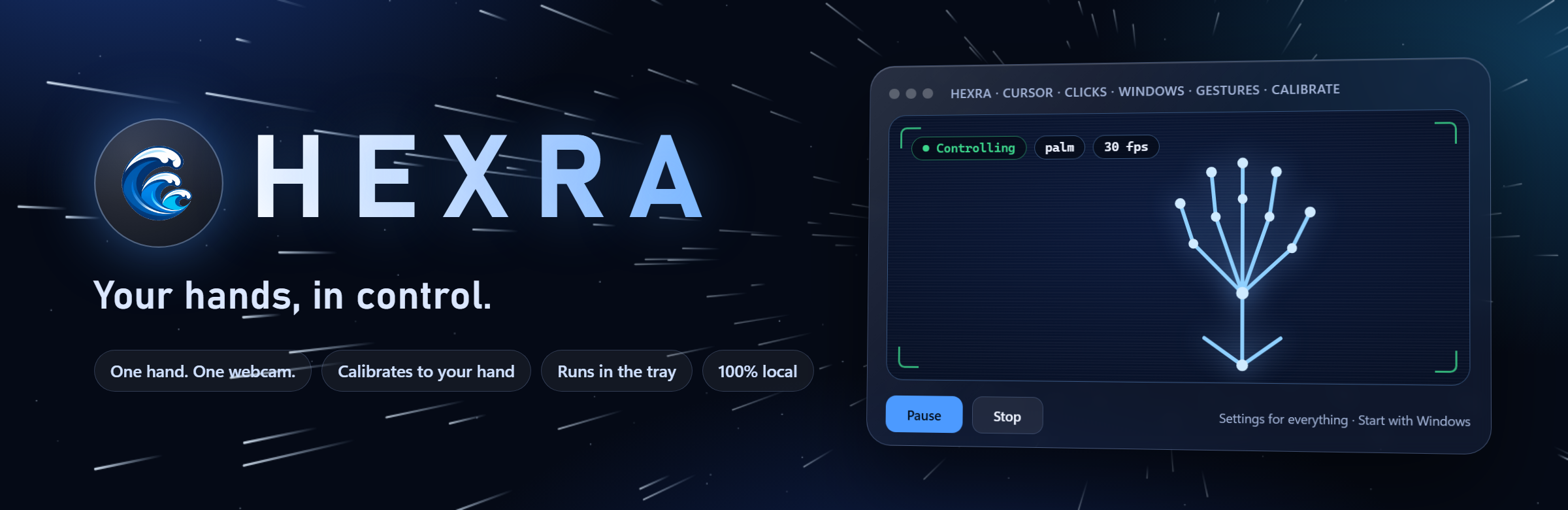
Your hands, in control. Hexra turns one hand and a webcam into a mouse for Windows: cursor, click, drag, scroll and window commands across every screen. It calibrates to your own hand the first time you open it, runs in the system tray, and runs entirely on your own computer.
Explore the workflow. This is a small browser-only illustration, not the full application. AI responses are scripted; model and desktop features are not running here. Inputs stay on this page and reset when you reload.
Result
Ready. Change the sample and run the demo.
Explore the real workflow
Download Hexra-Setup.exe and run it (Windows may warn because the file is not code-signed).
The full app's capabilities and requirements are described below.
What it is for
Hexra is a Windows application that drives the whole computer from one hand in front of a webcam. MediaPipe finds 21 hand points, a pose recogniser names the pose, and a tested state machine turns poses into a mouse-like cursor with acceleration, clicks, drags, right-clicks, four-direction scrolling, and window moving, maximising, minimising and closing. Everything is in one window: a live camera view, a calibration to your own hand, and a setting for every behaviour. Close the window and Hexra keeps running in the system tray; it can start with Windows.
Webcam cursor demos usually jitter, lag, mistake a turned hand for a click, and drop whatever you are holding. Hexra treats those as the real engineering problem: smoothing, latency, pose ambiguity, debouncing and multi-monitor geometry.
Present without a clicker
Stand back from the laptop and click and scroll slides with your hand.
Touch-free browsing
Scroll a recipe or a document with messy or gloved hands.
Study hand tracking
Read a small, tested example that covers smoothing, debouncing, latency and multiple monitors.
Set it up for your own hand
Run the first-time calibration so Hexra reads your fist and thumbs-up the way you make them.
Get started
Run the installer, open Hexra, follow the Calibrate tab (about two minutes), press Start Hexra on the camera view, then hold an open palm in the air for one second to wake it.
Windows 10 or 11.
A webcam; good, even light on your hand helps.
About 270 MB of disk space for the installed program.
The first time you open it, Hexra asks for nine poses and learns what yours look like, so a fist with the thumb tucked is a fist and a thumbs-up stays a thumbs-up. It tells you which poses your hand makes look alike.
Mouse-like cursor
The cursor moves by how far your hand moves, with acceleration: slow movement for fine control, a quick flick to cross the screen.
Nine poses
Open palm moves, pinch clicks or drags, three fingers right-click, two fingers scroll in four directions, a fist grabs a window, thumbs-up maximises, thumbs-down minimises, an L shape closes, one finger pauses. Every pose can be reassigned.
One window
A live camera view with Start, Pause and Stop, and a page of plain-language settings for everything, with presets and search.
Runs in the tray
Closing the window leaves Hexra running in the system tray; only Quit in the tray closes it. It can start with Windows.
Adaptive smoothing
A One-Euro filter calms a trembling hand when you are still and gets out of the way when you move fast.
Every screen at once
Left, right, above and below screens of different sizes and DPI are one desktop, with window snapping to screen edges.
Only when you mean it
Gestures count only while the hand is raised in the air, and optionally only while you face the screen.
Two cameras (optional)
Two cameras can track together: the better view decides the pose and both steady the cursor. Tested with simulated cameras only.
Private by design
No cloud, no account, no telemetry. Camera frames stay in memory for one frame; calibration is stored on your own computer.
Download Hexra-Setup.exe and run it (Windows may warn because the file is not code-signed).
Open Hexra. The first time, follow the Calibrate tab: nine poses, about two minutes, hand in view of the camera.
Press Start Hexra on the camera view, hold an open palm in the air for one second to wake it, then move, pinch, scroll or grab.
Pause or Stop at the bottom of the window; close the window and Hexra keeps running in the tray, and Quit in the tray closes it.
Architecture
A control engine process keeps only the newest camera frame, runs MediaPipe's hand landmarker, names the pose (the standard rules, or the nearest examples of your own calibrated hand), decides whether the hand counts (raised in the air, facing the screen), and turns poses into actions with a camera-free state machine through pynput and Win32 window calls. A local window process (a small HTTP server on 127.0.0.1 with a secret token) hosts the settings page and streams the camera picture; it also owns the system-tray icon. Two cameras are fused by learning an affine map between the views. The Windows installer is one file built with PyInstaller.
Privacy and limitations
A webcam cannot match a physical mouse: it delivers about 30 frames per second with tens of milliseconds of its own delay. Most tuning was validated on simulated hands and automated tests, not a user study. Calibration was tried on one person's hand (all nine poses recorded, 97.6 to 100 percent held-out accuracy) and two-camera fusion only with simulated cameras. The installer is unsigned, so Windows SmartScreen will warn, and earlier builds were flagged once by Windows Security as a machine-learning false positive.
Status
Version 1.7.0 is published on GitHub with a single-file Windows installer and a user guide. The repository contains the source, 216 automated tests and the build scripts. The newest features (calibration to your own hand, two-camera fusion, the tray) are young: calibration was run on one person's hand, and two cameras were tested only with simulated cameras.
Platform
Windows 10 and 11, one webcam (two optional)
Installer
One file, about 95 MB, nothing else to download
Privacy
Runs 100% locally
Tests
216 automated tests
Evidence
216 automated tests pass 1.7.0 · reviewed 2026-11-06 Tests run on simulated and constructed hand geometry and fake cameras, without a camera. Not a user study. The first-run calibration was run once on the author's own hand with a real webcam (all nine poses recorded, 97.6 to 100 percent accuracy on held-out parts of the recording). Two-camera fusion has not been run on two real cameras.
Calibrates to your own hand on first run, the Hyperdrive background, Start on the camera picture, Pause and Stop at the bottom. Includes the one-window app, system tray, start with Windows and two-camera fusion from 1.5.0. SHA-256 of Hexra-Setup.exe: 72684dab87827c65fa0c00c6bdec234de71d1e31e3ec827d434a738cdb822b1b
One window, system tray, settings, start with Windows, two cameras. SHA-256 of Hexra-Setup.exe: b52be78765ee114944918b2b9bdd56df4e6278ac12ffacf786395ecbe0bf32a1
First public release. Single-file Windows installer without the face lock, plus the user guide. SHA-256 of Hexra-Setup.exe: 057cbeb323f18ad540769a28e1975deb0eafce52f6291a47a3e6262092b059bd
No. Hexra never sends data anywhere, and no photos are saved.
Is it as fast as a mouse?
No. A webcam adds its own delay. Hexra keeps its own part of the delay to roughly 10 to 30 milliseconds.
Why does Windows warn me about the installer?
The installer is not code-signed. Choose More info, then Run anyway, and compare the SHA-256 on the release page if you want to verify it.
Can it close or minimise windows?
Yes: thumbs-up maximises, thumbs-down minimises and an L shape closes the window under the cursor, and a fist drags a window to a screen edge to snap it.
Does it keep running when I close the window?
Yes, in the system tray. Right-click the tray icon and choose Quit Hexra to close it.